Copying layers from one document to another in Photoshop is very simple when you know how. The traditional copy + paste however doesn’t work in this situation, so how do you copy layers? These techniques are real time-savers, which has an added bonus, they ensure your layer styles (if any) are maintained in the new layer. There are a few ways to copy a layer so pick the method, which you find easiest to follow and apply it to your way of working. We hope you enjoy this tutorial, and if you have any questions feel free to leave a comment.
Copying layers – Example 1
If you want the layer to be placed on top on your existing image, we find this shortcut the best,
All you need to do is hold the CMD key and press the J button
And this creates the new layer on top, shown below

But if you want to move a layer into a completely new document
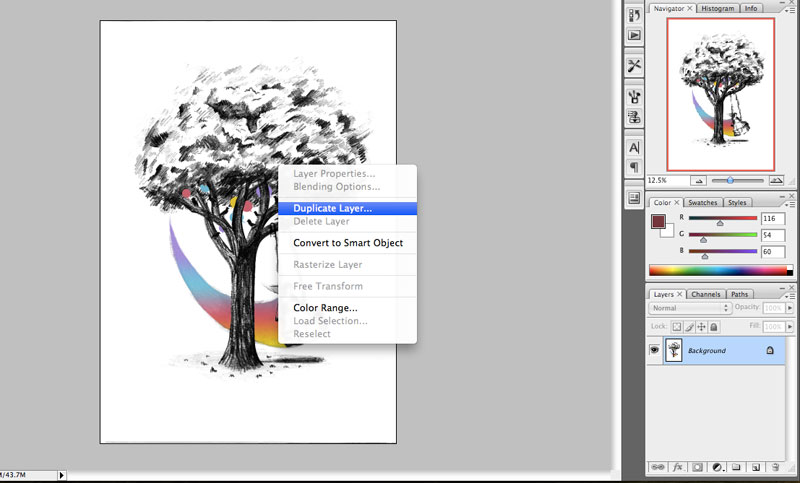
Right click the layer in question
Select “Duplicate Layer…” from the pop-up menu or by going to Layer > “Duplicate Layer…” in the top menu bar.

In the pop-up box, in the destination section, select the drop-down menu and choose which document you want to copy your layer to, then press “Okay”. A real time-saver tip here is copying to a completely new document. It’s easy to forget it’s here but it can be very handy if you want to make a back up of a layer or to use it for another purpose. It also gives you a second option of naming the new document so it’s all set once automatically copied.
Copying layers – Example 2
Another way to copy layers from one Photoshop document to another is by dragging the layer in question to the new location. We find this approach a little more cumbersome because it requires both documents to be within view, i.e. side-by-side, in order to drag to the correct document. If you’re working on a smaller screen or if your workspace takes up a lot of room, then this method might not work as well for you. Also in earlier versions of Photoshop (CS3 and below), before tabbed documents where introduced, having multiple documents open at any one time may cause a few issues copying layers. However the drag-and-dropping Photoshop trick is still useful and one that you need to know and can be done by following these easy steps.
Select the layer in question by choosing it within the layers panel or by right clicking the graphic with the Photoshop document and selecting the layer from the pop-up menu. Or for an even quicker way, hold ALT + Right click the layer to automatically select it.
Choose the move tool from the tools panel or press the shortcut key: V.

With the layer selected, left click and drag into a new document. If you want to copy the layer into a new document, you can’t however automatically generate one like you can with the first method. Instead a new document will need to be open before you copy any layers.
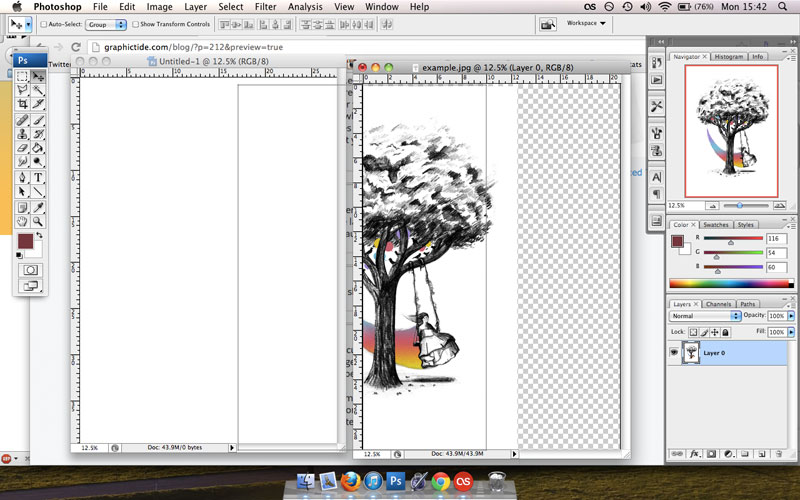

So there we go, two simple essential Photoshop tips to make your designing life just that little easier. If you want more great tips, design inspiration and to receive exclusive t-shirt offers and info, be sure to sign up to our e-mail newsletter.
Which Photoshop layer copying method do you use?